Fix one sentence without re-recording a chapter
Revise the affected line, match the surrounding pace, and replace only that clip. This is useful for tutorials and explainers whose details change after editing begins.
Turn a finished script into clear narration without recording every revision. Voiceslab gives creators an AI voice for YouTube tutorials, explainers, reviews, and Shorts, with a free browser preview before sign-up.
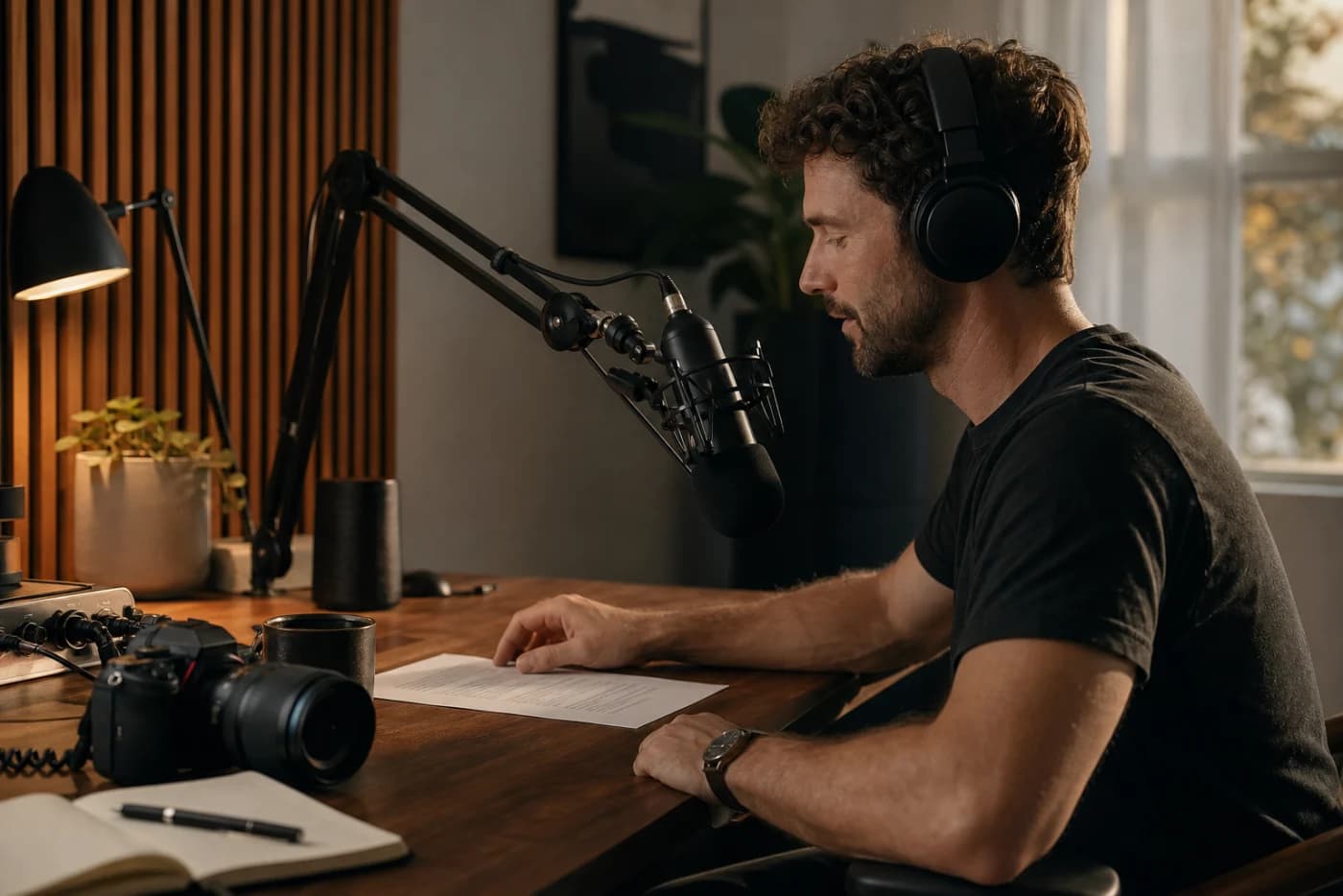
For YouTube creators
Voiceover workflow
Script to voiceover
Preview, refine, export
WORKING VOICE DEMO
Paste a hook or short scene, choose a voice, and listen in the browser. This working YouTube voice generator helps you judge pacing and tone before producing the full video.
A PRACTICAL CREATOR TOOL
An AI voice for YouTube turns a video script into narration you can place under tutorials, explainers, reviews, or Shorts. Corrections do not require another microphone session, and recurring videos can keep a recognizable vocal identity.
Start with an available voice for fast narration or create an authorized clone of your own voice. Preview a real paragraph first, then generate longer scripts in scene-sized sections so timing and revisions stay manageable.
WHY CREATORS USE IT
An AI voice for YouTube removes repetitive recording work while you keep control of the script, edit, and visual story.
Revise the affected line, match the surrounding pace, and replace only that clip. This is useful for tutorials and explainers whose details change after editing begins.
Travel, shared rooms, and background noise can interrupt recording. An AI voice for YouTube provides a practical fallback without lowering the need for careful writing and review.
Using the same selected voice or authorized clone helps intros, lessons, and calls to action feel connected across an educational, documentary, or faceless series.
FROM SCRIPT TO TIMELINE
A reliable AI voice for YouTube comes from a short, repeatable production routine that keeps narration editable.
Put the main idea early, use natural contractions, and read difficult lines aloud. Clear spoken writing produces a stronger first preview.
Use the same paragraph to compare voices for warmth, speed, and clarity. Match the voice to the format rather than choosing from unrelated demos.
Create audio by scene or visual beat. Smaller sections make an AI voice for YouTube easier to revise and give editors clean points for pauses and B-roll.
Place the track in the timeline and adjust wording or clip boundaries. Edit the script before forcing major timing changes with playback speed, then confirm voice rights before publishing.
BUILT FOR ITERATION
Voiceslab keeps the AI voice for YouTube workflow focused on previewing text, choosing a voice, generating speech, and exporting it to your editor.
Hear a short script before creating an account, which is useful for checking a hook or opening paragraph.
Compare available voices with one consistent sample instead of judging them from unrelated demo lines.
Create a custom voice from your own recording when viewers already associate the channel with your delivery.
Regenerate a corrected sentence or scene instead of arranging another complete recording session.
Prepare localized scripts and test how a familiar voice works for audiences in other supported languages.
Move completed speech into the video editor where you control music, timing, captions, and final loudness.
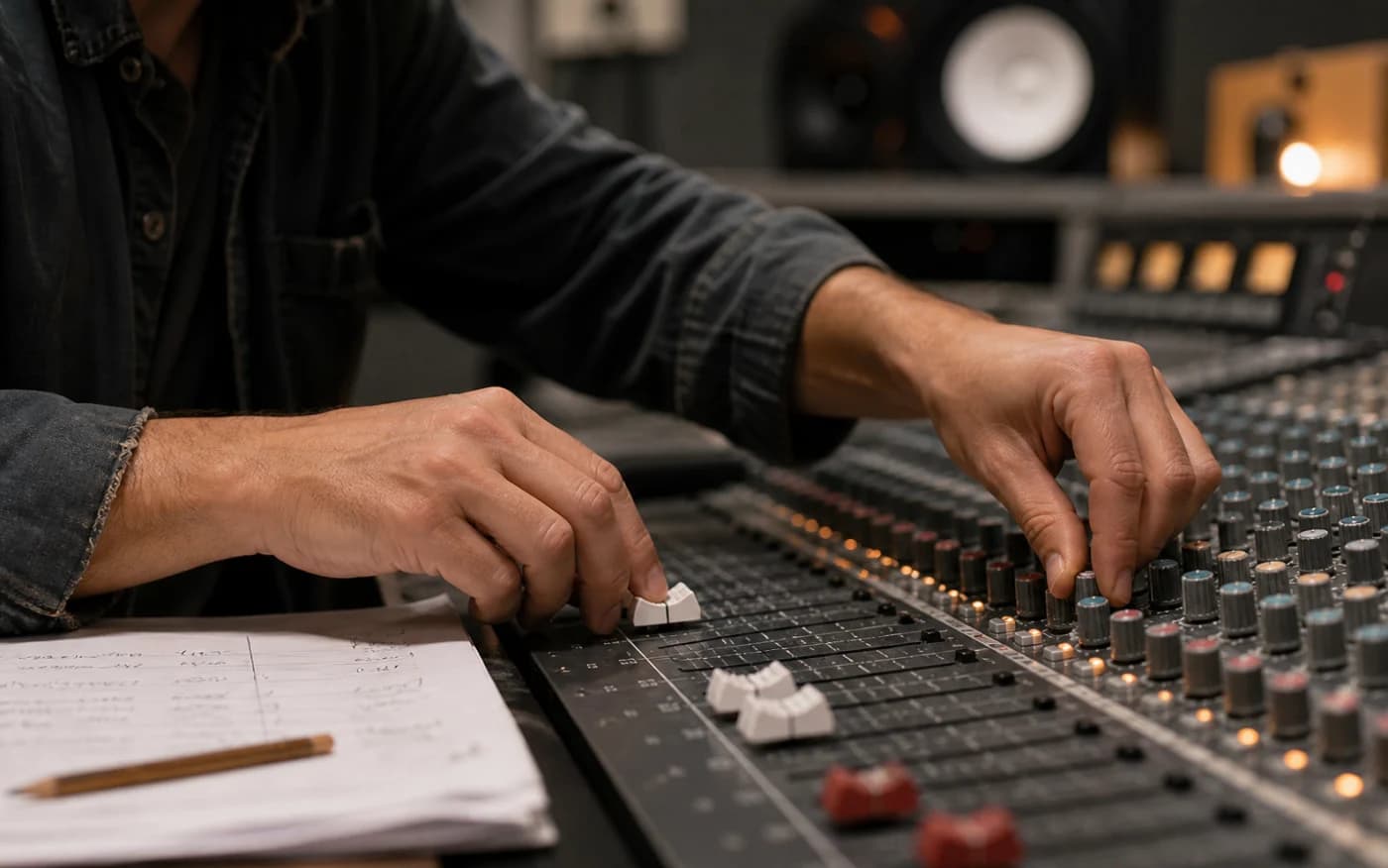
Direct the delivery
Create a custom voice from your own recording when viewers already associate the channel with your delivery.
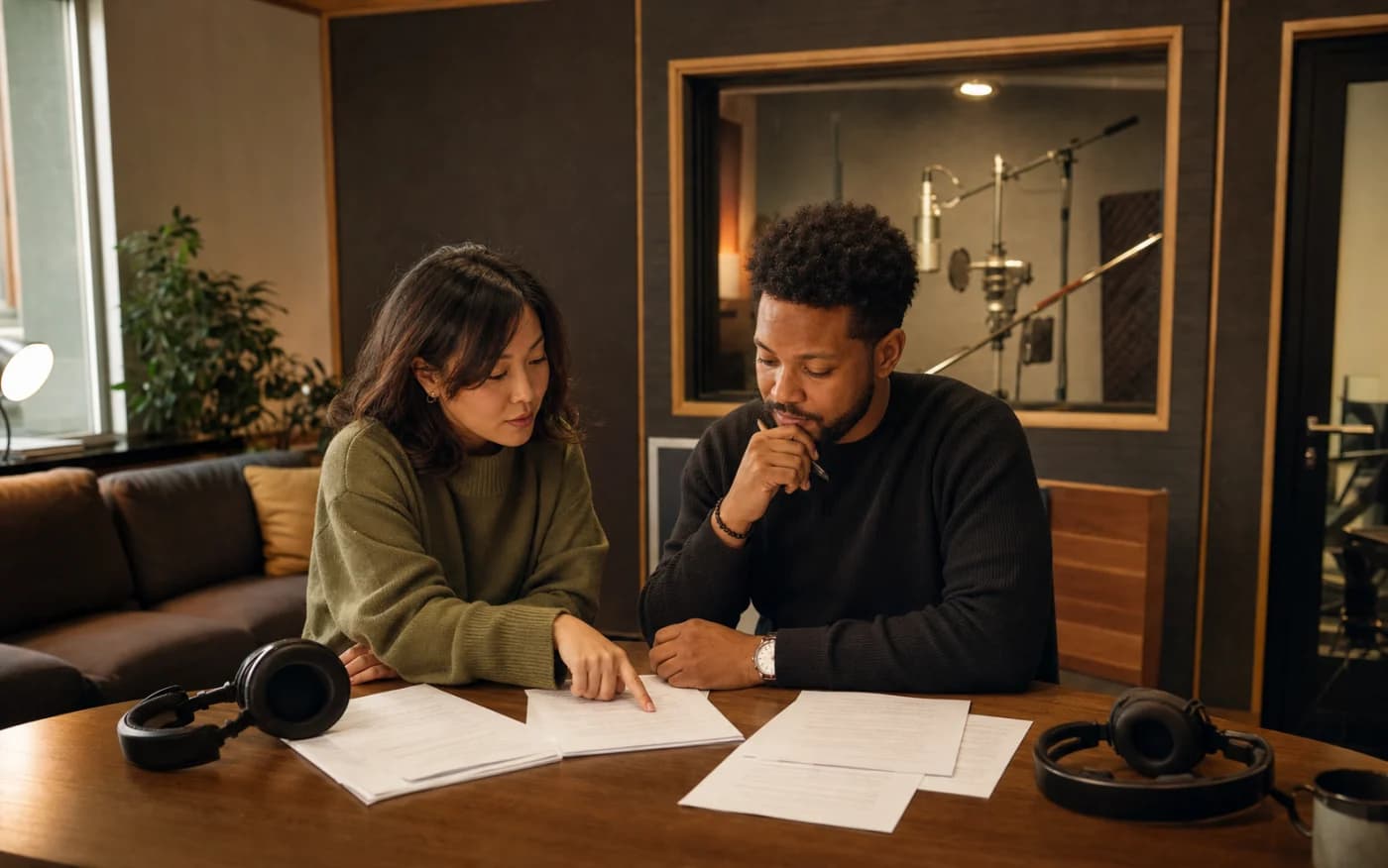
Build for more audiences
Prepare localized scripts and test how a familiar voice works for audiences in other supported languages.
MAKE IT SOUND INTENTIONAL
Treat punctuation as direction. Use full stops for clear boundaries and keep pronunciation notes for recurring product names or branded phrases. This helps an AI voice for YouTube stay consistent across uploads.
Review the result with headphones and on a phone speaker. Fix repeated cadence or crowded sentences by rewriting the script first. The YouTube voice generator speeds production, but the editor still decides what sounds useful.
QUESTIONS BEFORE YOU CREATE
Yes. Paste a short script, select an available voice, and generate a limited browser preview before signing up.
Tutorials, explainers, product demos, documentaries, Shorts, and faceless channels can use generated narration when the script fits the format.
No. A generator can use an available voice, while voice cloning creates a custom model from an authorized recording.
Yes. If you own the recording and voice rights, you can create an authorized clone for consistent narration from new scripts.
Use conversational writing, deliberate punctuation, shorter sentences, and scene-sized generation. Review the audio in the timeline and rewrite awkward phrases.
Yes. Voiceslab creates speech; your editor aligns it with visuals, music, captions, loudness, and the final export.
Paste a real line into the free demo, check the pacing, and build an AI voice for YouTube workflow your channel can repeat.
Generate a YouTube VoiceoverFor YouTube creators
Voice track