
Study and review on the go
Turn lecture notes, papers, and study guides into audio and review them while walking or commuting.
Upload a PDF, Word document, or text file, and Voiceslab extracts the text and turns it into natural AI speech. Listen to reports, study notes, articles, and drafts while you commute, exercise, or rest your eyes.

Documents to audio
Voiceover workflow
Script to voiceover
Preview, refine, export
WORKING VOICE DEMO
Paste a paragraph from your document and listen. Once you find a voice you like, upload the full file in the document studio.
WHAT IT IS
A PDF to audio converter does two jobs. First, it pulls the text out of the file; then it reads that text aloud with a text to speech voice, which is why it is also called PDF to speech. The quality depends on both steps: clean extraction and a voice that is comfortable to listen to for more than a few minutes.
Voiceslab accepts PDF, DOC, DOCX, ODT, and TXT files, as well as XLSX, XLS, and ODS spreadsheets. After uploading, you can review the extracted text, remove headers or page numbers you do not want read, pick a voice, and generate audio you can play or download.
WHY PEOPLE USE IT
When a tool can read a PDF aloud for you, it frees up your eyes so you can get through documents when reading is not practical.
Turn lecture notes, papers, and study guides into audio and review them while walking or commuting.
Hearing a draft read aloud reveals missing words, repeated phrases, and clumsy sentences you skip over when reading silently.
Listening helps people with dyslexia, low vision, or eye strain get through reports and articles more comfortably.
HOW IT WORKS
From upload to audio file in a few steps.
Choose a PDF, Word, ODT, TXT, or spreadsheet file from your computer.
The text opens in the editor. Delete page numbers, footnotes, or headers you do not want to hear. Long files are split into parts you can convert one at a time.
Pick a calm voice in the document's language for long listening, or use your own cloned voice.
Generate the audio, play it in the browser, or download it as an MP3 for your phone.
WHAT YOU GET
Made for reading real documents, not just a sentence or two.
PDF, DOC, DOCX, ODT, TXT, XLSX, XLS, and ODS files are supported.
Fix extraction errors and remove clutter before the voice reads anything.
Choose clear narration voices that stay comfortable over long sections.
Have documents read in a voice you cloned from your own recording.
Convert documents in other languages using voices that speak them.
Save the audio and listen offline on your phone or in any player.
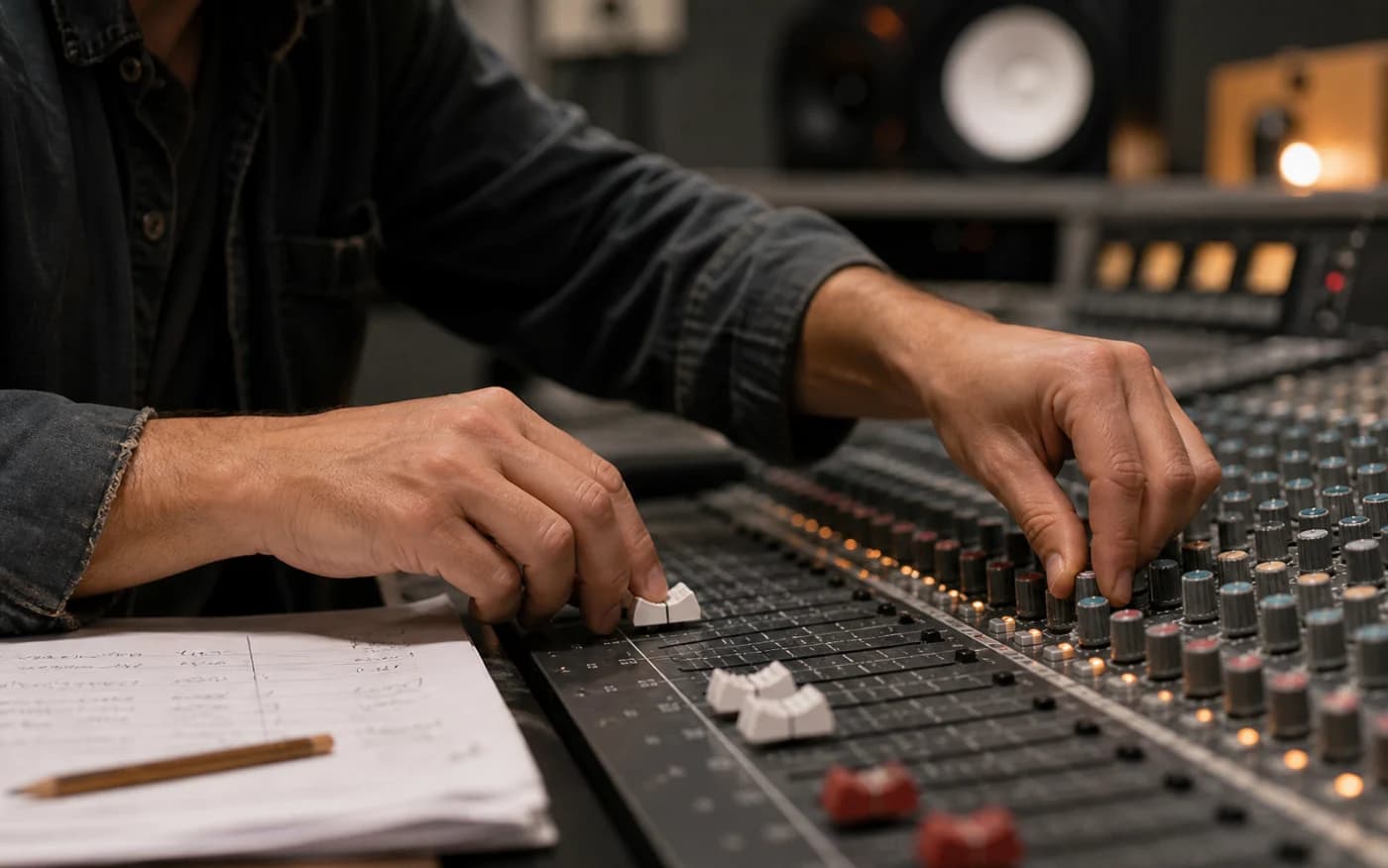
Direct the delivery
Choose clear narration voices that stay comfortable over long sections.
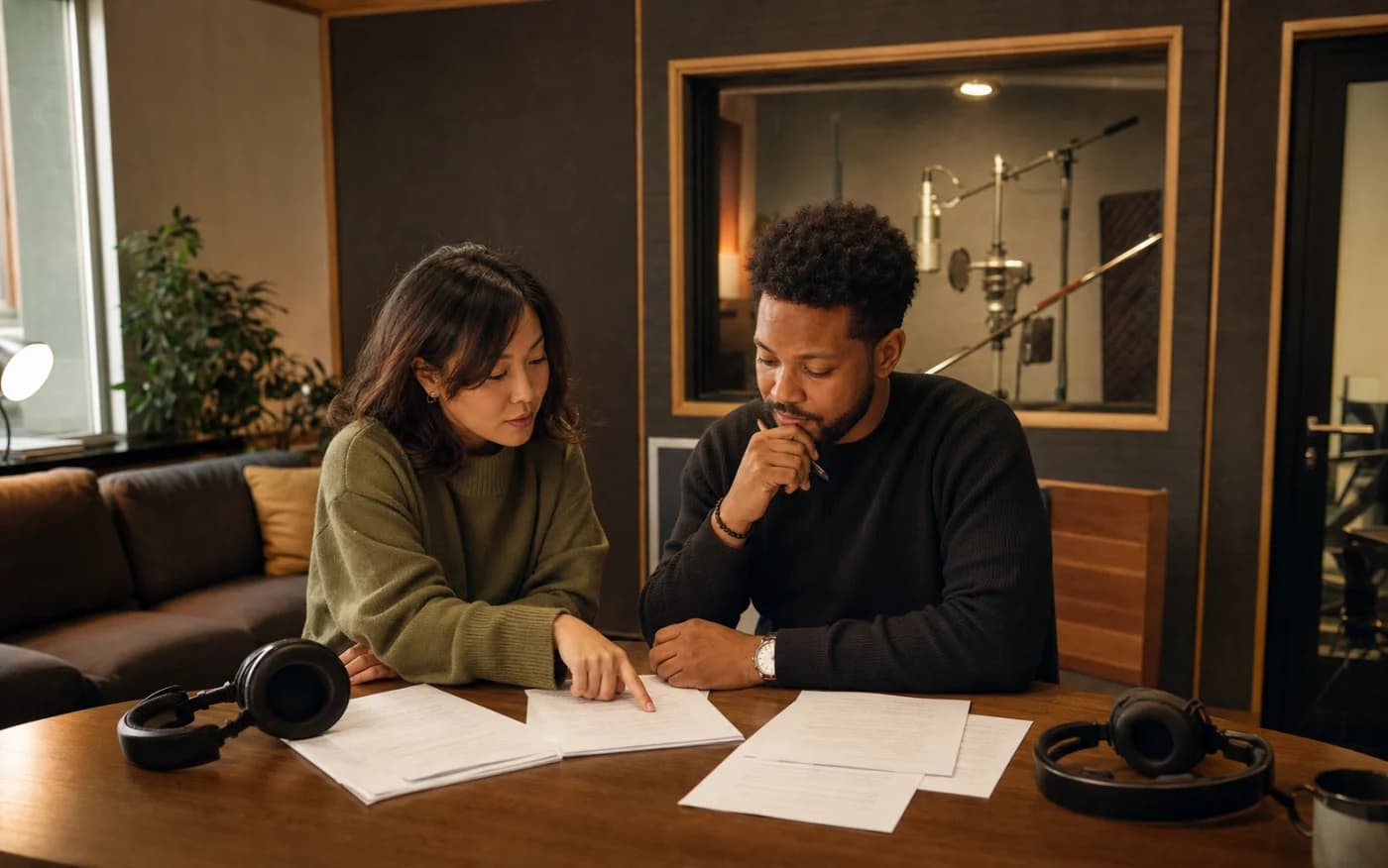
Build for more audiences
Convert documents in other languages using voices that speak them.
GET CLEANER AUDIO
PDFs are designed for printing, not for reading aloud. Columns, tables, captions, and running headers can end up in the extracted text in odd places. A quick pass over the text before generating saves you from hearing page numbers in the middle of a sentence.
Scanned PDFs are images, so their text cannot be extracted directly. Run them through OCR first, or copy the text into a TXT or Word file. For very long documents, convert one chapter or section at a time so each audio file stays easy to navigate.
QUESTIONS BEFORE YOU CREATE
PDF, DOC, DOCX, ODT, and TXT documents, plus XLSX, XLS, and ODS spreadsheets.
Scanned PDFs contain images rather than text, so the text cannot be extracted. Use OCR first or paste the text manually.
You can try the voices for free in the preview above. Converting files requires a free account, and the free plan includes 3,000 characters per month. Paid plans cover longer documents.
Yes. Download the generated speech as an MP3 and listen on any device.
Yes. Word to speech works the same way as a PDF: upload a DOC or DOCX file and pick a voice.
Yes. Clone your voice from a short recording, then select it when converting the document.
Find a voice you enjoy, then upload a document and take it with you.
Try a VoiceDocuments to audio
Voice track